In addition to the daily automated backups Spanning runs to protect your data, an on-demand backup can be initiated whenever you like. To perform an on-demand backup, follow these steps:
- Do one of the following:
- To back up your own data, log into Spanning Backup for Google Workspace with your user account. Skip to Step 4.
- To back up another user's data, log in with your admin account.
- Click Users.
- Locate the user whose data you want to back up. Click the user's
 icon and select Impersonate.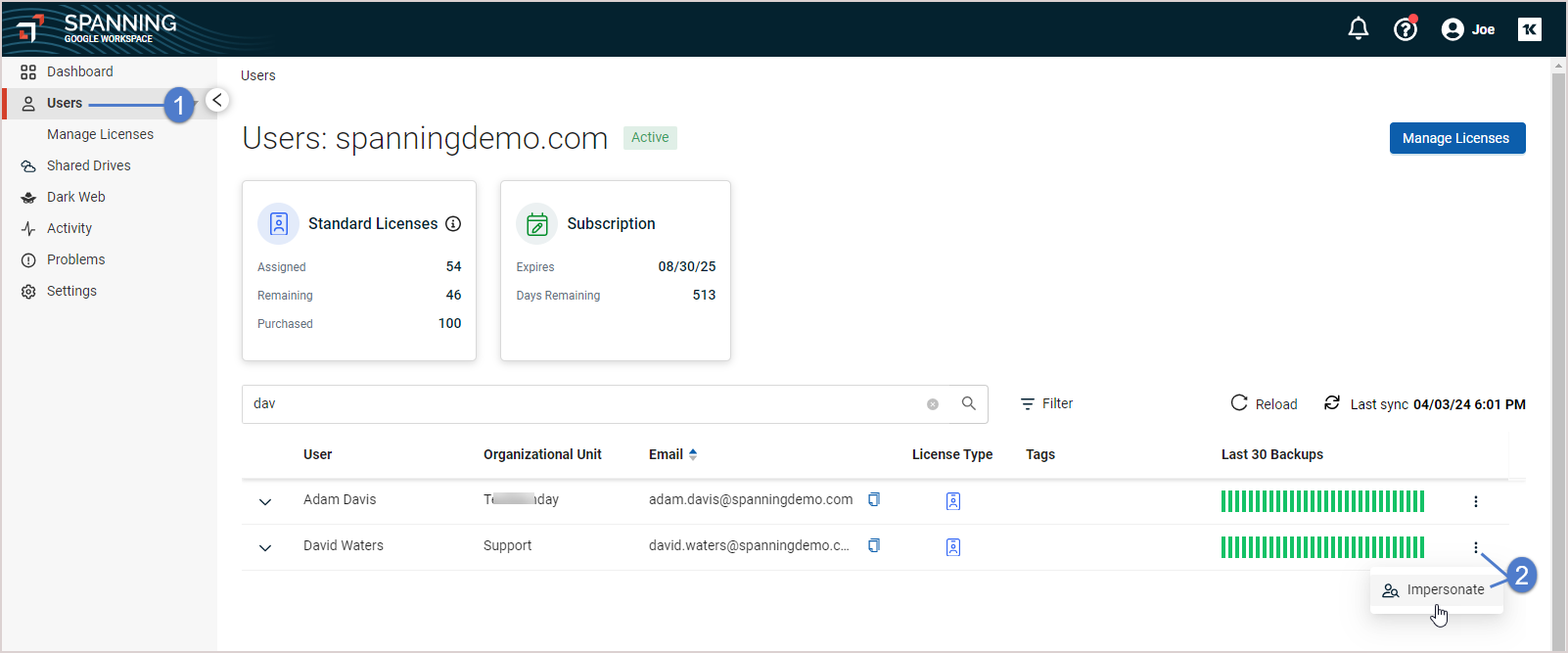
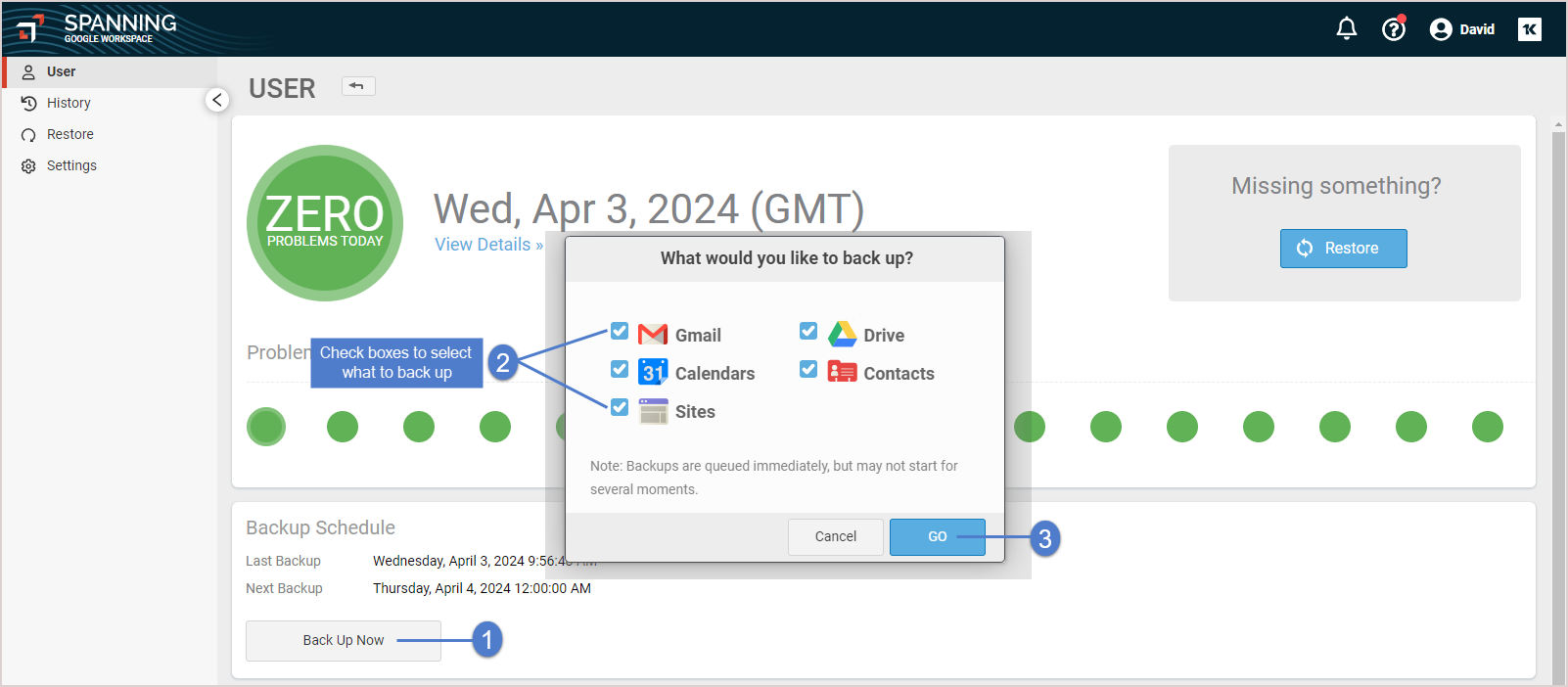
- On the Users page, click Back Up Now.
- Check boxes to select what to back up (Gmail, Calendars, Sites, Drive, or Contacts).
- Click Go.
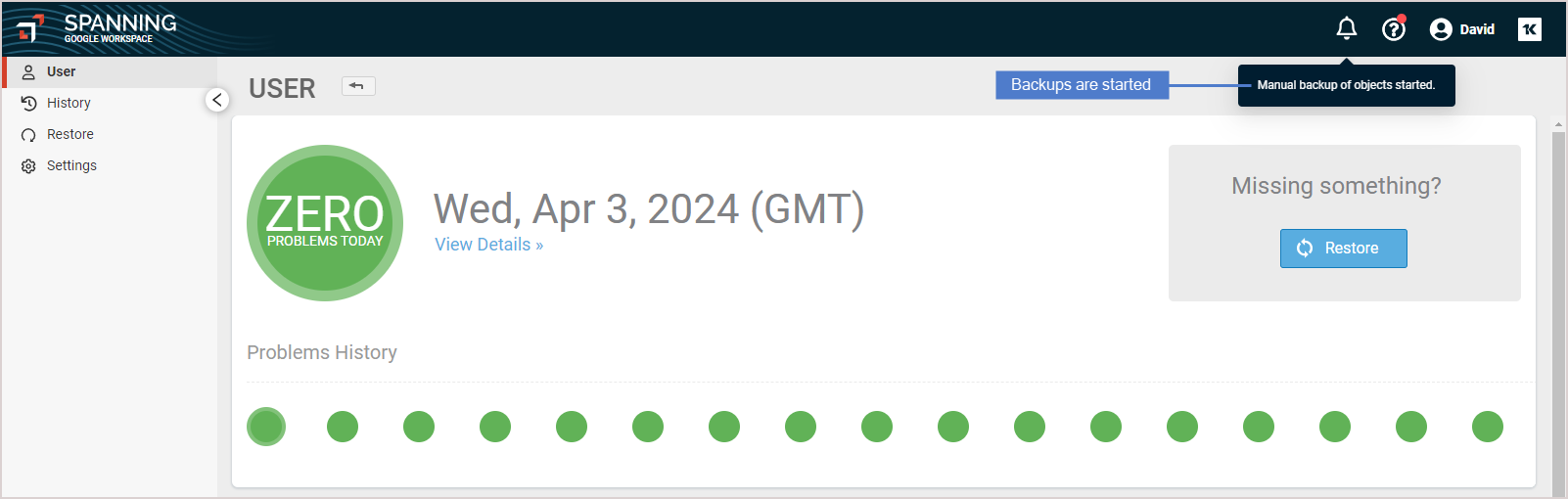
- On-demand backups are started.
- Repeat this procedure as needed to run on-demand backups for other users.
NOTE There is no option to do on-demand backups for everyone in the domain in one operation. You have to go into each account to perform on-demand backups per user. Drive backups include Team Drives content if Team Drives backup is enabled in Spanning.


