How to install Spanning for Google Workspace
Use these steps to install Spanning for Google Workspace.
Before you begin the installation process, ensure that you are a Google Super Admin with full administrative rights for the Google Workspace domain where you will install Spanning.
To check if you are a Super Admin, log in to the Google Workspace Admin Console with your Google credentials and then navigate to Users. Filter the list of users by the Super Admin role: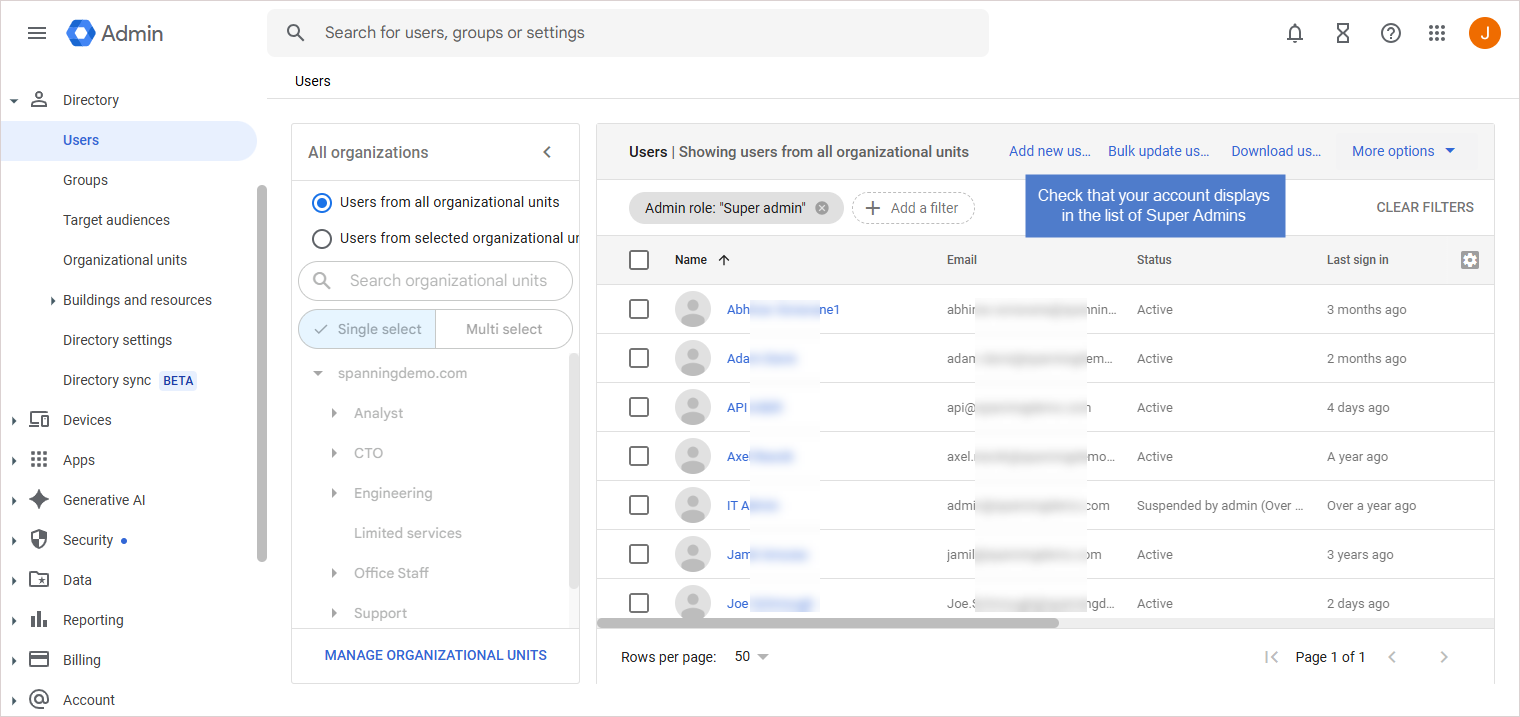
To install Spanning for Google Workspace from the App Marketplace
- Log in to your Google Workspace account.
- Click this URL to open the Spanning for Google Workspace listing on the Google Workspace Marketplace: https://workspace.google.com/marketplace/app/spanning_for_m365_backup_for_g_suite/632855923494.
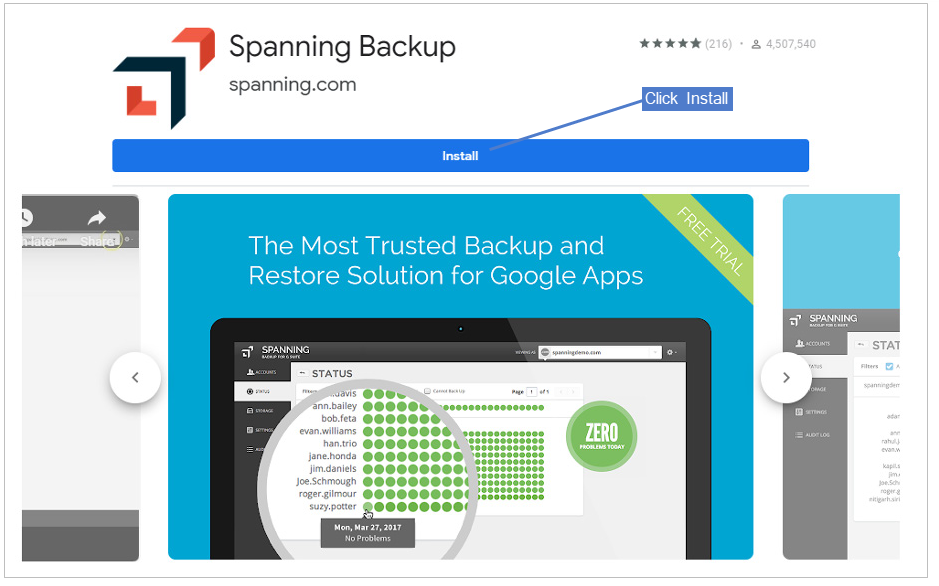
- Click Install to start the installation process.
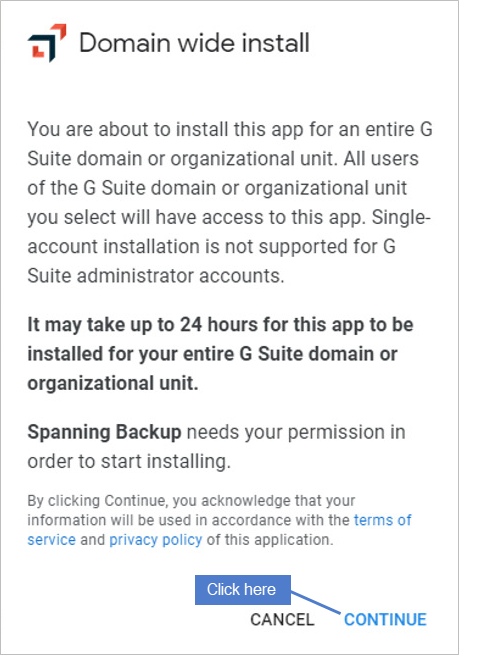
- Click Continue.
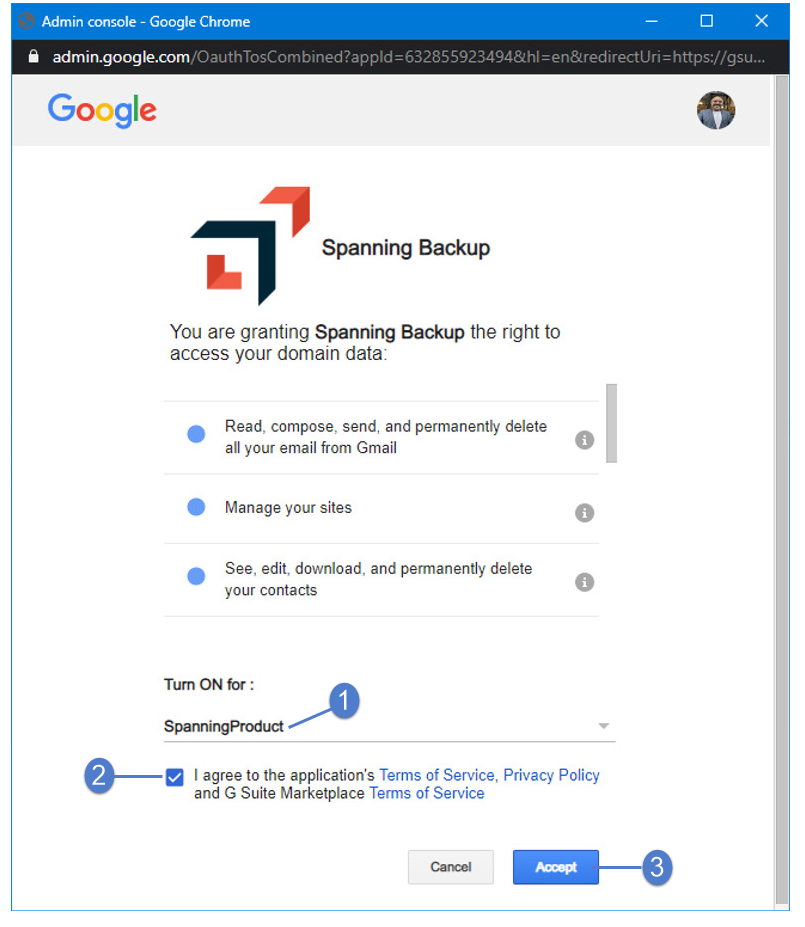
- Select the top-level domain in the list under Turn ON for.
- Check the box to agree to Terms of Service for the application and for Google Workspace Marketplace.
- Click Accept.
- Choose if you would like to send out a notification about Spanning for Google Workspace to all the users in your domain and click Next.
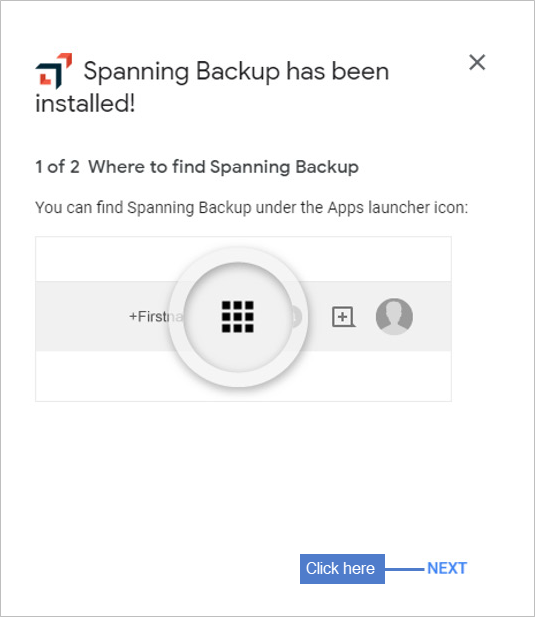
- Click Next on the screen displaying where to find Spanning.
- Spanning is installed. Click Done.


